Install with winget (recommended)
winget ships with Windows 10 (recent builds) and Windows 11. In PowerShell or Windows Terminal:
winget install T3Tools.T3CodeThen open T3 Code from the Start menu.
Install with Scoop
If you use Scoop, add the extras bucket once and install:
scoop bucket add extras
scoop install extras/t3code
You can also download the Windows installer directly from GitHub Releases.
Install the t3 command line
To run the server and use T3 Code in your browser instead of the desktop app:
irm https://t3.codes/install.ps1 | iext3 works in that PowerShell window straight away. For new windows, add its folder to your user PATH (the installer tells you which folder). Then:
t3If you already have the desktop app, skip the script: Settings → About → t3 command → Install adds the command folder to your PATH for you.
Run agents inside WSL
If your repositories and tools live in the Windows Subsystem for Linux, let T3 Code work there:
- Open Settings → Sharing & access.
- Choose your WSL distro.
- Inside that distro, install and sign in to your agent CLIs (for example
claude auth login).
T3 Code installs its own server runtime inside WSL automatically. The first launch after an app update can take a little longer while it does that.
Tip: install agents in the same place your code lives. Agents running natively on Windows against files in WSL (or the reverse) are slower and trip over line endings and paths.
Sign in to an agent
The quickest way: on the Welcome page, click Sign in next to the agent.
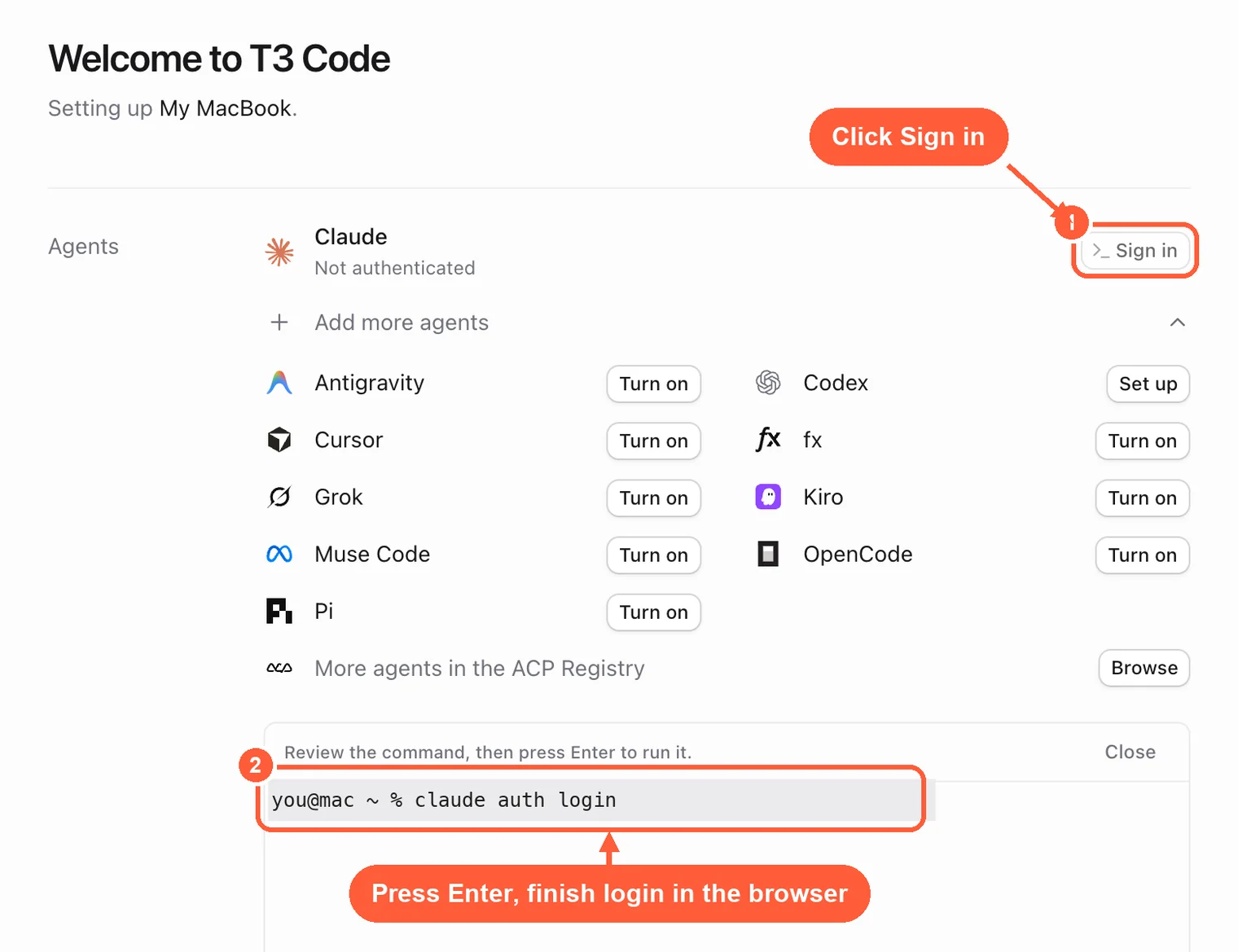
Or run it yourself in PowerShell:
claude auth logincodex loginCheck Settings → Providers to confirm the agent is ready.
Troubleshooting
- Agent not detected: open a new terminal after installing the CLI, then restart T3 Code. If it still isn’t found, set the agent’s Binary path in Settings → Providers.
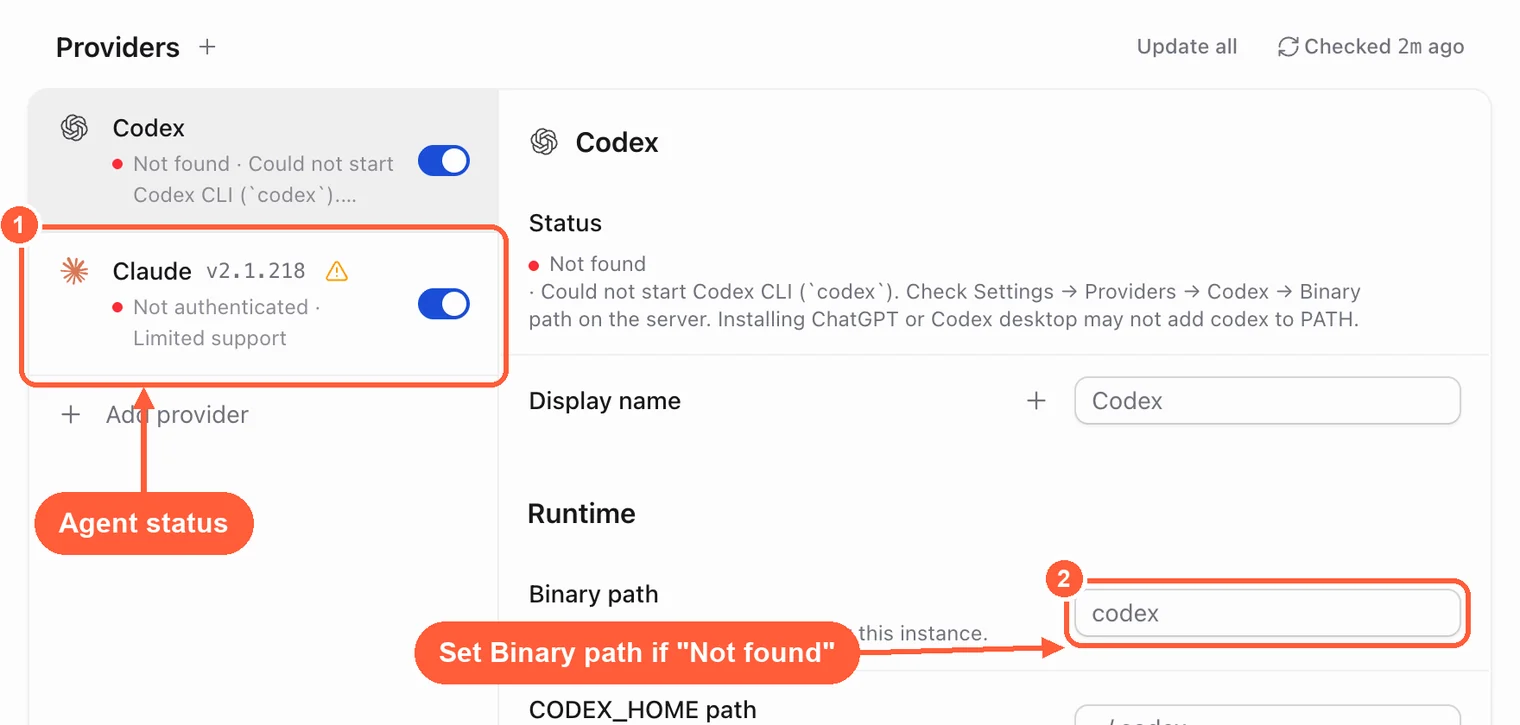
- winget can’t find the package: run
winget source updateand try again. - Agent works in WSL but not in T3 Code: check that T3 Code is set to that WSL distro, not native Windows, in Settings → Sharing & access.
FAQ
Does T3 Code support WSL?
Yes. Choose a WSL distro in Settings → Sharing & access. T3 Code installs its own server runtime inside the distro; you install and sign in to the agent CLIs inside that distro.
Do I need WSL to use T3 Code on Windows?
No. T3 Code and the supported agents run natively on Windows. WSL is only needed if your projects or toolchain live in Linux.
Why is the t3 command not found in a new PowerShell window?
The installer adds t3 to the current window only. Add its folder to your user PATH so new windows can find it, or install the command from Settings → About in the desktop app.