Quick answers:
| I want to… | Do this |
|---|---|
| Update everything | Click the update button at the bottom of the sidebar |
| Update from a terminal | t3 update |
| Update one agent | Settings → Providers → Update now |
| See what changed | The changelog on GitHub |
| Remove the app | Your OS’s usual uninstall, or brew uninstall --cask t3-code / winget uninstall T3Tools.T3Code |
Remove the t3 command and service |
t3 uninstall |
| Remove my threads too | Delete the ~/.t3 folder after uninstalling |
Coming from a version before 0.1.0? That’s a bigger jump. Follow Upgrade to Orchestrator V2 instead.
Check which version you have
Open Settings → About:
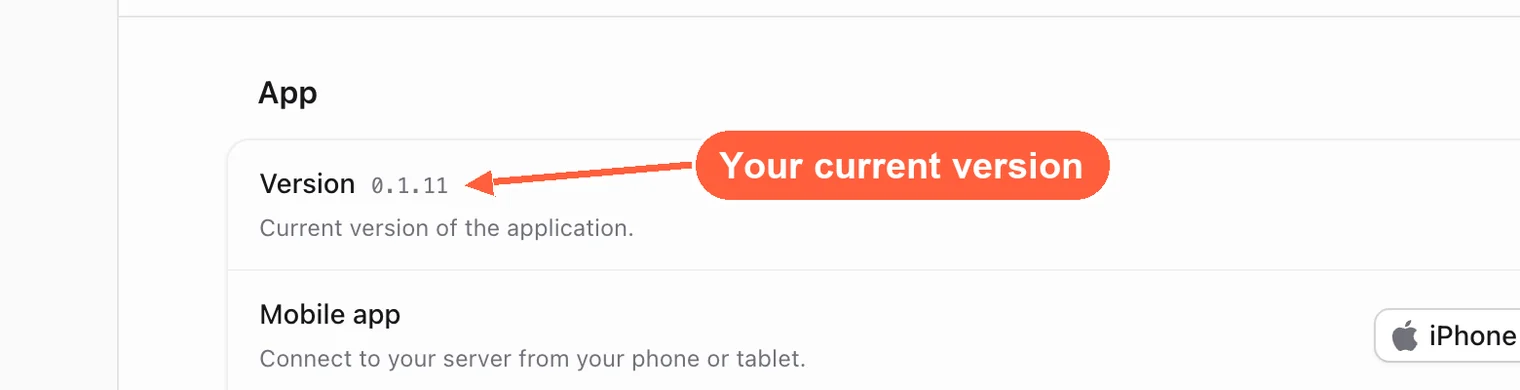
Or from a terminal:
t3 --versionCompare it with the newest release (see the changelog), or run npm view t3 dist-tags. See Nightly vs Stable if your version has nightly in it.
Update the desktop app (one click)
The update button sits at the bottom of the sidebar. Its tooltip says what it will update:

One click updates, in this order:
- outdated agents (Claude Code, Codex and the rest),
- servers that are behind, including remote machines you’re connected to,
- the desktop app you’re using.
When a new app version is available, the desktop app can also show that release’s notes from the same button. The app restarts after a short countdown. Choose Later to keep working and restart from the button when you’re ready.
Prefer your package manager? These update the desktop app only:
brew upgrade --cask t3-codewinget upgrade T3Tools.T3Codescoop update t3codeOn Arch, run yay -Syu t3code-bin. On Nix, use nix profile upgrade t3code or a rebuild, not t3 update. For a .deb or AppImage, download the new file from the GitHub releases page and install or run it in place of the old one.
Update the t3 command and background service
On a server or any machine where you installed the t3 command:
t3 updateIt downloads the newest release on your channel and switches both t3 and the background service to it. Restarting interrupts running turns, so it asks first. If you say no, the service keeps the old version until you run:
t3 service restartUseful variations:
- From a script:
t3 update --yesrestarts without asking. - Pin a version:
t3 update 0.1.11. - Started the server by hand?
t3 updateleaves it running. Stop it and start it again with your usual options, such as--hostor--tailscale-serve. - Running it with npx? There’s nothing to update. Stop the server and run
npx t3@latestagain.
Update your agents
Agents (Claude Code, Codex, OpenCode…) are separate CLIs, and each T3 Code release expects a minimum version of each. Settings → Providers marks any that are out of date:
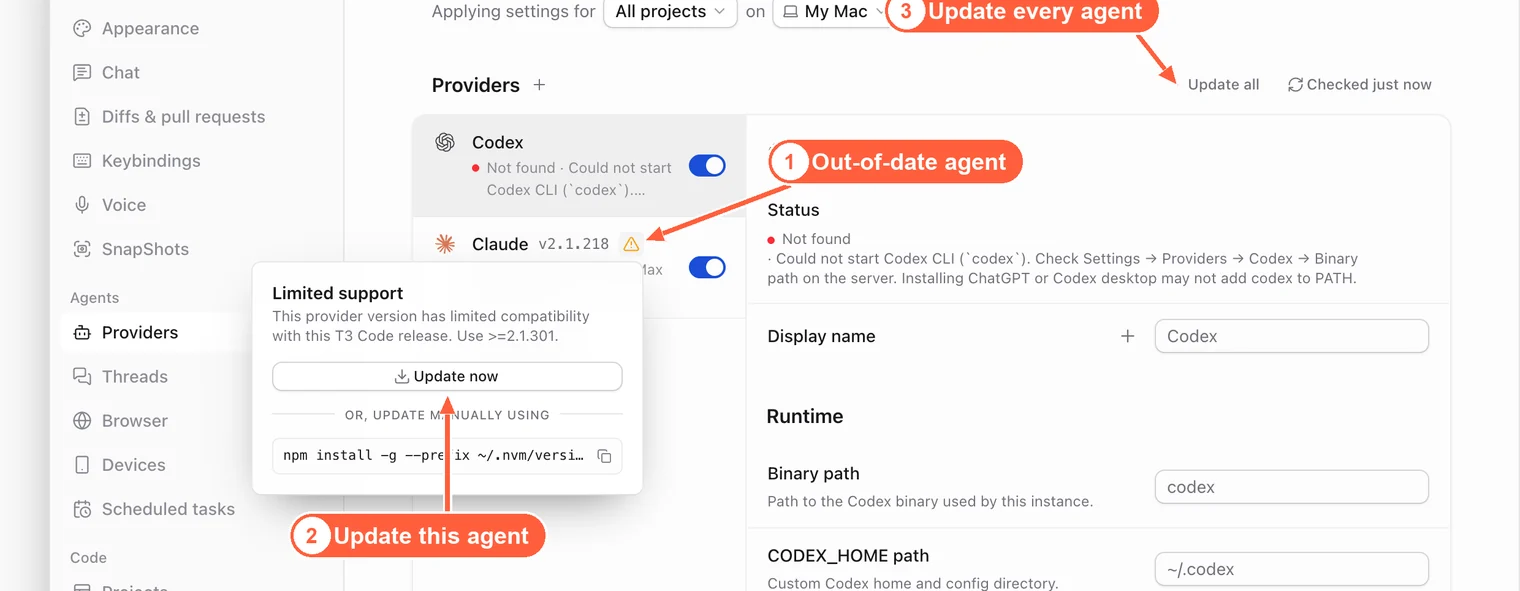
Updating an agent doesn’t restart chats that are already running. They keep the old CLI until they end.
Before you update: two settings worth checking
Both are in Settings → Maintenance and are on by default:
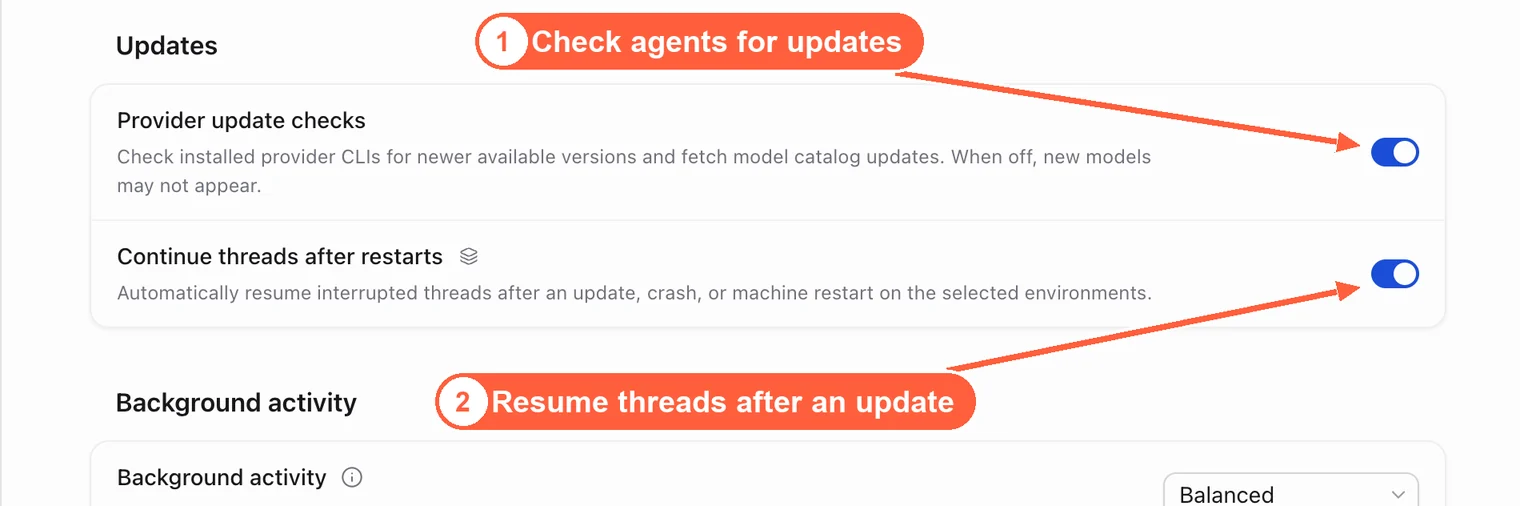
Threads that are waiting for your approval, archived, snoozed or settled are not resumed automatically. Terminal commands may still be cut off by the restart.
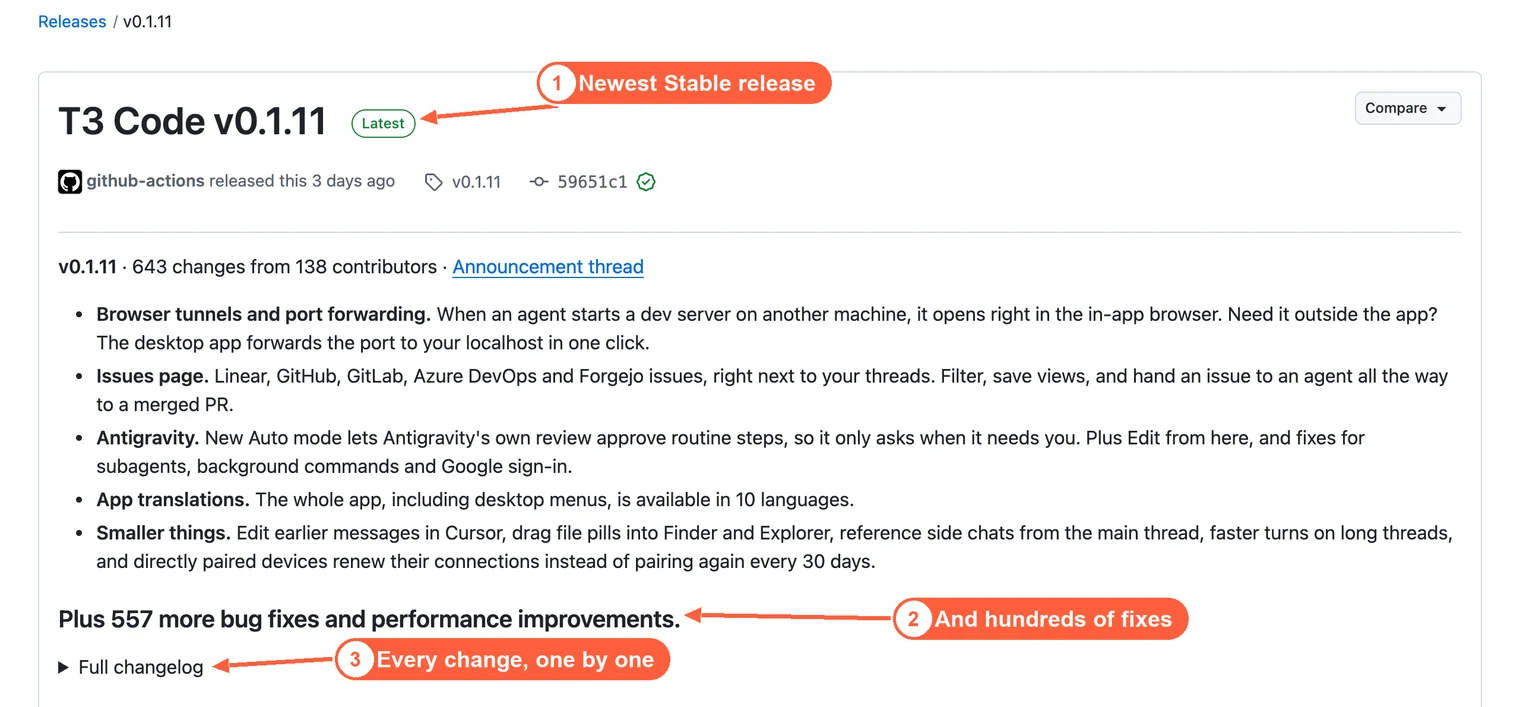
Where’s the changelog?
Every release has notes on GitHub: a few highlights at the top, then the full list of changes.
- All releases: github.com/pingdotgg/t3code/releases
- Only Stable: look for the Latest badge, or tags without
nightlyin the name. - The big one: v0.1.0 introduced Orchestrator V2. See Orchestrator V2, explained.
If an update fails
- Keep the app open until it reconnects or shows an error, then retry once.
- Make sure you updated the machine that runs the server, not just the device you’re on.
- For a command-line server, stop it and start the exact version the notice names, for example
t3 update 0.1.11.
Two error screens you may see:
- “T3 Code could not start”: choose Update if it’s offered. Otherwise the window links to the last version that started on your computer. Copy details gives you the error for a bug report.
- Mac app doesn’t reopen after updating an old Alpha install. The update can replace T3 Code (Alpha) with T3 Code (Beta). Open it from Applications and re-add it to your Dock.
Uninstall T3 Code
There are up to three things to remove: the desktop app, the t3 command with its background service, and your data. Remove whichever you have.
1. The desktop app
| You installed with | Remove with |
|---|---|
| Homebrew (Mac) | brew uninstall --cask t3-code |
| Mac download | Drag T3 Code from Applications to the Trash |
| winget (Windows) | winget uninstall T3Tools.T3Code |
| Scoop (Windows) | scoop uninstall t3code |
| Windows installer | Settings → Apps → Installed apps → T3 Code → Uninstall |
| Arch Linux | yay -R t3code-bin (or t3code-nightly-bin) |
| Nix | nix profile remove t3code |
.deb |
Your package manager. dpkg -l | grep -i t3 shows the package name |
| AppImage | Delete the .AppImage file |
2. The t3 command and background service
t3 uninstallIt lists what it will remove and asks once. Add --yes to skip the question in a script.
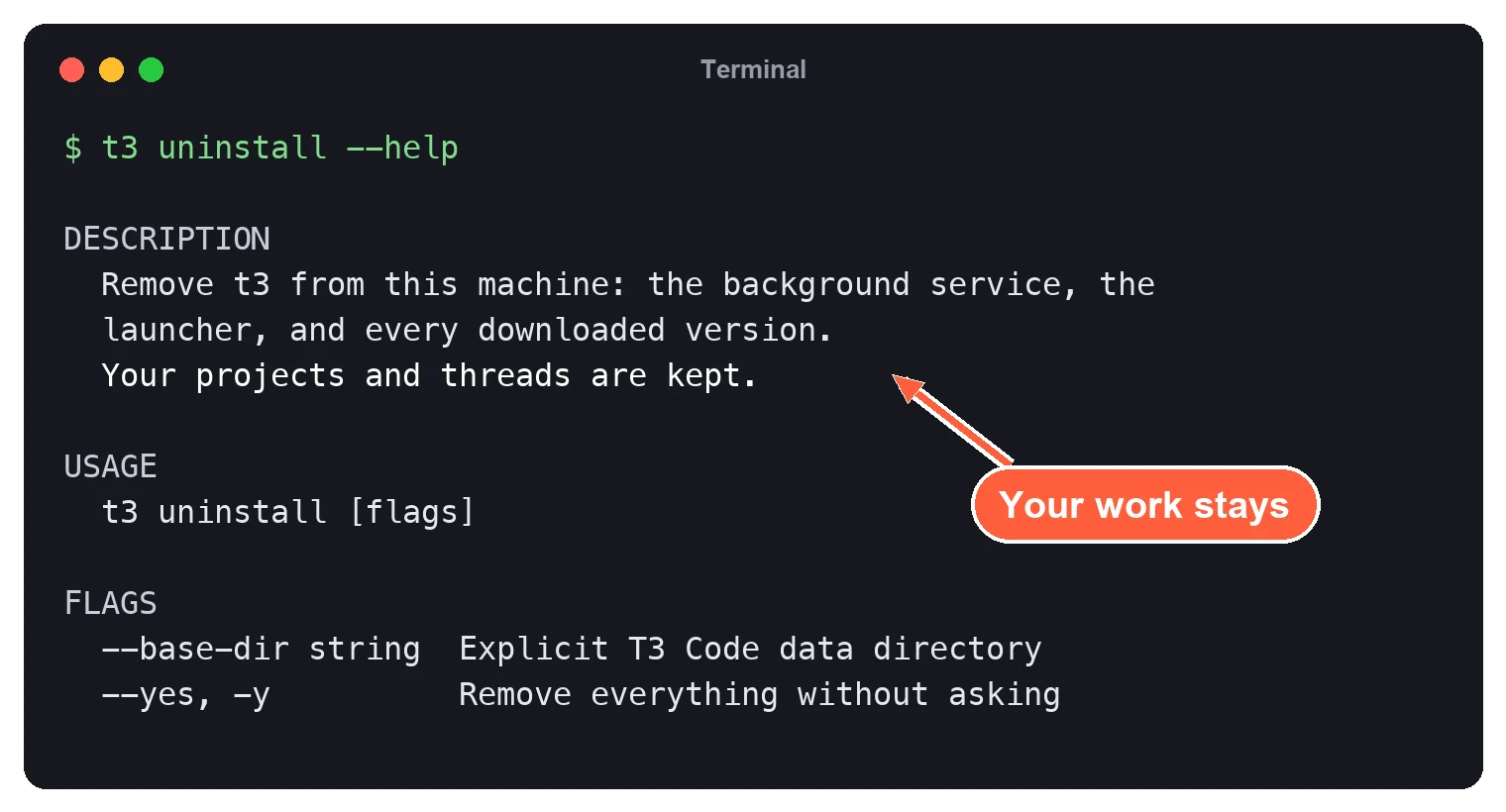
t3 uninstall --help output. It removes the service, the launcher and every downloaded version. Your projects and threads stay.Only want to stop T3 Code starting in the background, and keep the t3 command? Run:
t3 service uninstall3. Your threads and settings (optional, permanent)
Uninstalling keeps your data in ~/.t3 so a reinstall picks up where you left off. To remove it for good, first look inside:
~/.t3/userdata: your threads, settings and logs.~/.t3/projects: repositories T3 Code created for you with New project. Move any you want to keep before deleting.~/.t3/scratch: folders for threads without a project.
Then delete the whole folder.
macOS / Linux:
rm -rf ~/.t3Windows (PowerShell):
Remove-Item -Recurse -Force "$HOME\.t3"This can’t be undone. If you might come back, copy
~/.t3/userdatasomewhere safe first.
What uninstalling doesn’t touch
- Your agents. Claude Code, Codex and the others are separate tools with their own logins. Remove them separately if you want to.
- Your code. Projects you added from your own folders stay exactly where they are.
- The phone app. Delete it like any other app.
Sources: the upstream docs (updating.md, background-service.md, install.md) in the pingdotgg/t3code repo, plus t3 update --help and t3 uninstall --help.
FAQ
How do I update T3 Code?
Click the update button at the bottom of the sidebar. It updates outdated agents, then servers that are behind, then the desktop app. From a terminal, run t3 update, or upgrade with your package manager (brew upgrade --cask t3-code, winget upgrade T3Tools.T3Code).
Where is the T3 Code changelog?
Each release on the pingdotgg/t3code GitHub releases page lists the highlights and a full changelog. Releases marked Latest are Stable; ones marked Pre-release are Nightly or test builds.
How do I uninstall T3 Code?
Remove the desktop app the usual way for your system (for example brew uninstall --cask t3-code or winget uninstall T3Tools.T3Code), and run t3 uninstall to remove the t3 command, the background service and all downloaded versions.
Does uninstalling T3 Code delete my threads?
No. t3 uninstall keeps your projects, threads and settings in ~/.t3/userdata. Delete the ~/.t3 folder yourself if you want them gone.
Does updating T3 Code interrupt running agents?
A server update restarts the connection and can interrupt running agents and terminal commands. With Settings → Maintenance → Continue threads after restarts on (the default), supported threads pick up again afterwards.
Do I need to update the npx version?
No. npx t3@latest downloads the newest Stable release each time. Stop the server and start it again to get a newer one.