Short answer: use Stable. Switch to Nightly only if you want new features as soon as they’re built and you’re fine reporting the occasional bug. Orchestrator V2, for example, ran on Nightly for about two weeks before it reached Stable in v0.1.0.
Stable vs Nightly at a glance
| Stable | Nightly | |
|---|---|---|
| Who it’s for | Everyone, and any machine you rely on | People who want features early |
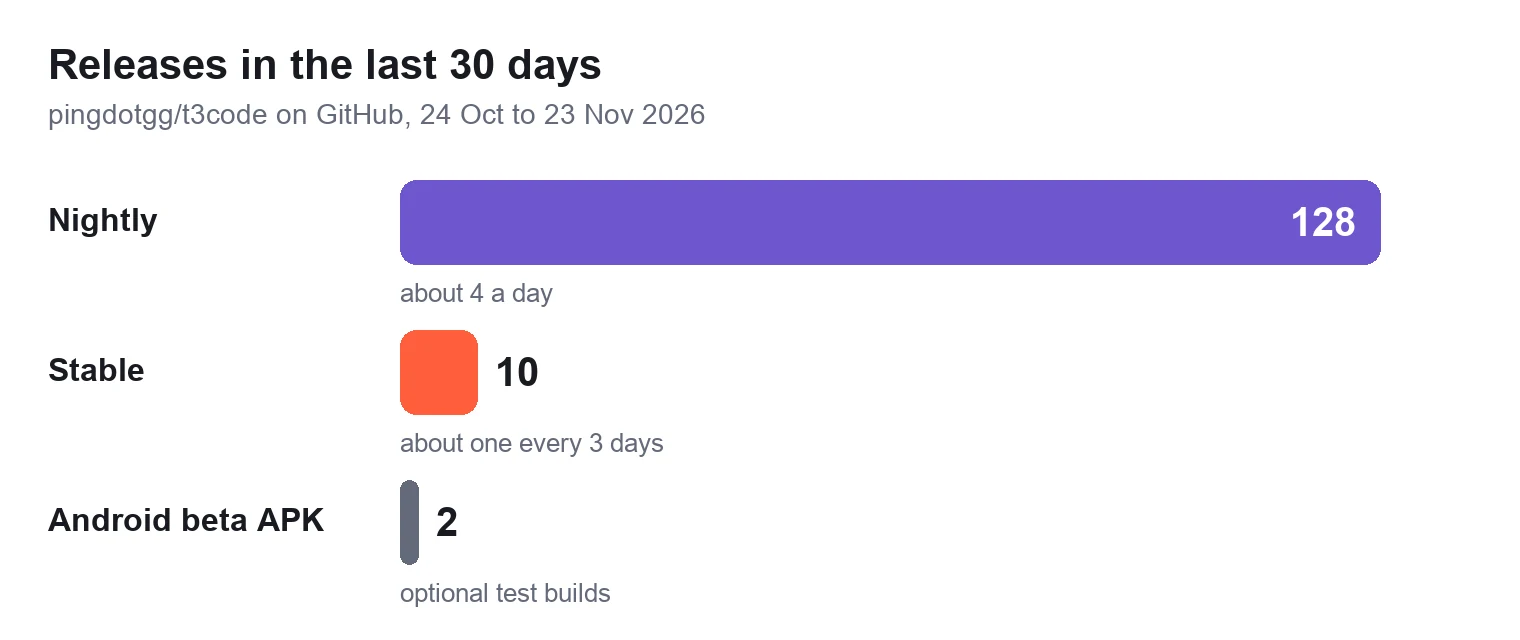
| How often | A release every few days | Several builds a day |
| Version looks like | 0.1.11 |
0.1.12-nightly.20261123.5124 (next version, date, build) |
| Bugs | Tested on Nightly first | Newest code, so more likely to break |
| App look | Plain sidebar header | Starry purple sidebar header |
| npm tag | t3@latest |
t3@nightly |
| Phone app | App Store / Google Play app | The same store app works |
The difference in pace is large. Here is the last 30 days of releases on GitHub:
Which one am I running?
You can tell at a glance. Both screenshots below are real, from Stable 0.1.11 and the Nightly build of 23 November running side by side.
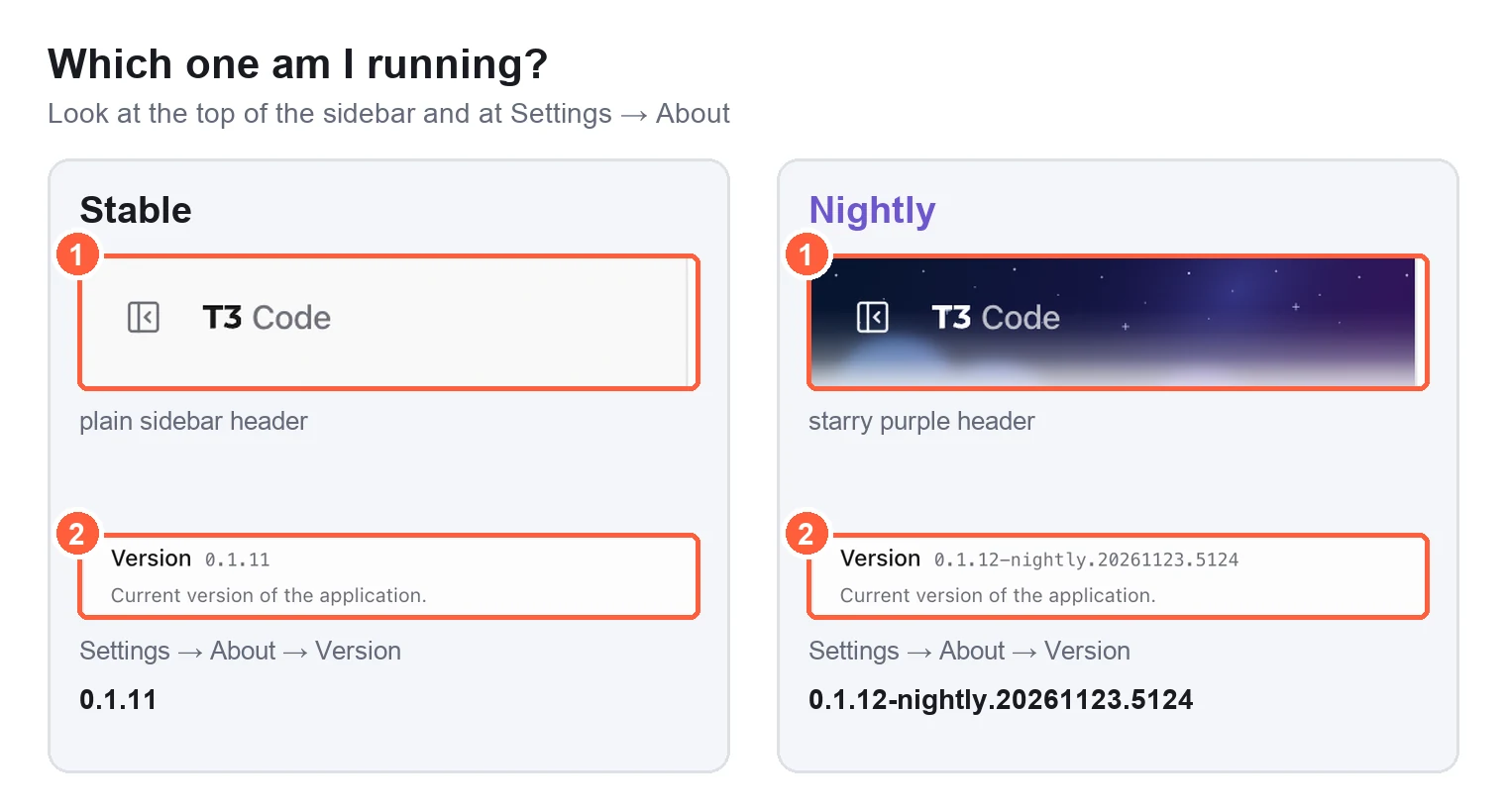
From a terminal, t3 --version shows the same version string.
Check the latest versions
npm keeps a tag for each channel, so one command shows both:
npm view t3 dist-tagsOn 23 November 2026 this printed latest: '0.1.11' and nightly: '0.1.12-nightly.20261123.5124'. Every build is also on the GitHub releases page. Nightly builds are marked Pre-release.
Try Nightly without touching your setup
The safest way to look at Nightly is to run it once with its own data folder. Your normal threads and settings stay untouched:
npx t3@nightly --base-dir ~/t3-nightlyThis starts the Nightly server and opens it in your browser. Stop it with Ctrl+C. Delete ~/t3-nightly when you’re done.
Only one server can use a data folder at a time. A separate
--base-dirlets Nightly run next to your normal Stable install.
Switch to Nightly
Desktop app
Open Settings → About → Update track in the desktop app and choose Nightly. T3 Code lists every connected machine it will move, and any it has to skip, then switches them in one step. This app reinstalls last. Your threads, settings and data stay.
You can also download a Nightly installer directly. Open the releases page, pick a release marked Pre-release, and choose the .dmg, .exe, .deb or T3-Code-Nightly-*.AppImage for your system.
The t3 command and background service
Already have t3 installed? Switch it, including the background service:
t3 update --channel nightlyNew install on macOS or Linux:
curl -fsSL https://t3.codes/install.sh | T3CODE_CHANNEL=nightly shNew install on Windows (PowerShell):
$env:T3CODE_CHANNEL = "nightly"; irm https://t3.codes/install.ps1 | iexArch Linux has a separate package:
yay -S t3code-nightly-binOn Nightly, run your installed
t3, notnpx t3. Plainnpx t3always runs the latest Stable release.
Switch back to Stable
In the desktop app, set Settings → About → Update track back to Stable.
For a t3 install or background service, run this on that machine:
t3 update --channel stable --allow-downgrade--allow-downgrade is needed because Stable is usually older than the Nightly you’re on, and a background service can’t be moved to an older release remotely.
Why a switch can be blocked: Nightly may have already updated your database in a way the current Stable release doesn’t understand yet. T3 Code then refuses the switch and says why. You can wait until Stable catches up, or update the machine on its current track first. Before switching tracks on a machine with threads you care about, back up its data folder (see Step 2 of the V2 upgrade guide).
Phones and the “nightly APK”
- The store apps work with both. The App Store and Google Play versions connect to Stable and Nightly servers alike, so you don’t need a special phone build to use Nightly.
- Android test builds are optional. They’re published as
android-beta-…APKs on the GitHub releases page. Nightly releases sometimes also attach anandroid-internalAPK. That’s an internal build, so stick to the store app or the beta APK. - iPhone and iPad test builds go through TestFlight, which is invite-only.
Other channels and settings
- Preview is a maintainers’ test train. Its builds can be broken and are never offered as updates. The installer and
t3 updateask you to confirm before installing one. - Pin an exact version with
t3 update <version>, or by settingT3CODE_VERSIONbefore running the install script. - Company machines: an administrator can turn the Nightly channel off with the managed policy setting
allowNightly: false.
Sources: the repo docs updating.md, install.md and background-service.md, t3 update --help, and the GitHub releases.
FAQ
Should I use T3 Code Nightly or Stable?
Stable, unless you want new features before everyone else and don't mind the odd broken build. Stable gets a release every few days; Nightly gets several builds a day.
How do I know if I'm on Nightly?
The Nightly app has a starry purple band at the top of the sidebar, and Settings → About shows a version like 0.1.12-nightly.20261123.5124. Stable shows a plain version such as 0.1.11.
How do I switch from Nightly back to Stable?
In the desktop app, change Settings → About → Update track. For the t3 command or background service, run t3 update --channel stable --allow-downgrade on that machine.
Is there a T3 Code nightly APK for Android?
The App Store and Google Play apps work with both Stable and Nightly servers, so most people don't need one. Optional Android test builds are published as android-beta APKs on the GitHub releases page.
What is the latest version of T3 Code?
Run npm view t3 dist-tags to see the current latest (Stable) and nightly versions, or check the releases page on GitHub. On 23 November 2026 they were 0.1.11 and 0.1.12-nightly.20261123.5124.
What is the preview channel?
A maintainers' test train. Its builds can be broken and are never offered as updates. Use Stable or Nightly instead.