Short version: install Pi, log in once with pi and then /login, and turn Pi on in T3 Code. Your Pi setup comes along unchanged: models, logins, extensions, skills and session history.
What you need
| Pi | Version 0.84.3 or newer |
| Node.js | 22.19 or newer, on the machine that runs T3 Code |
| A model | Whatever you log in to through Pi’s /login, or an API key |
Pi has to be installed on the same machine as the T3 Code server. If you use T3 Code from a laptop or phone that connects to a home server, install Pi on the server.
Set it up in 3 steps
1. Install Pi
On the server machine, use Pi’s own installer or npm:
npm install -g --ignore-scripts @earendil-works/pi-coding-agent2. Log in once
Start Pi in a terminal on that machine (over SSH for a remote host), then log in:
pi/loginPrefer an API key? Skip /login and add the key as an environment variable on the Pi instance in T3 Code instead (step 3).
3. Turn Pi on in T3 Code
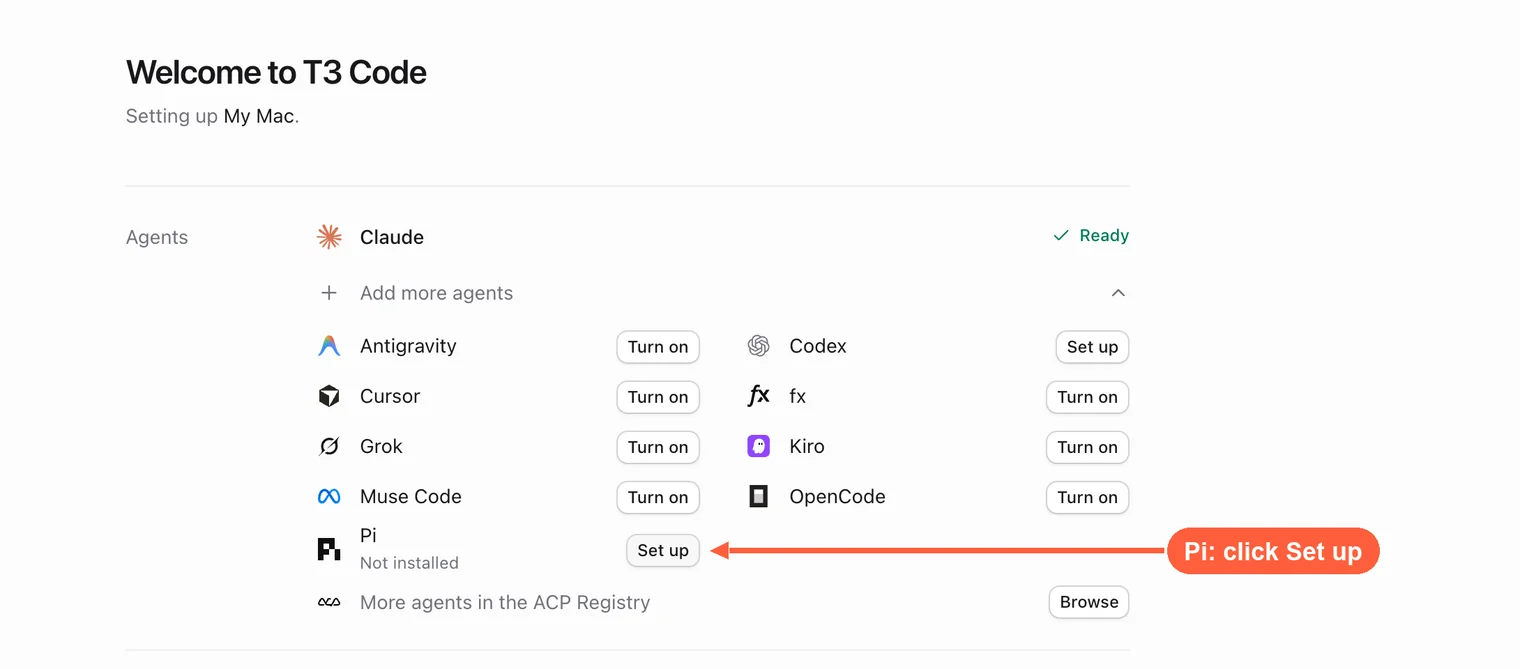
On the Welcome page, click Add more agents, then Turn on next to Pi. Until Pi is installed, the row says Not installed with a Set up button:
Set up opens Settings → Providers → Pi. If Pi isn’t found, the status line shows the exact install command:
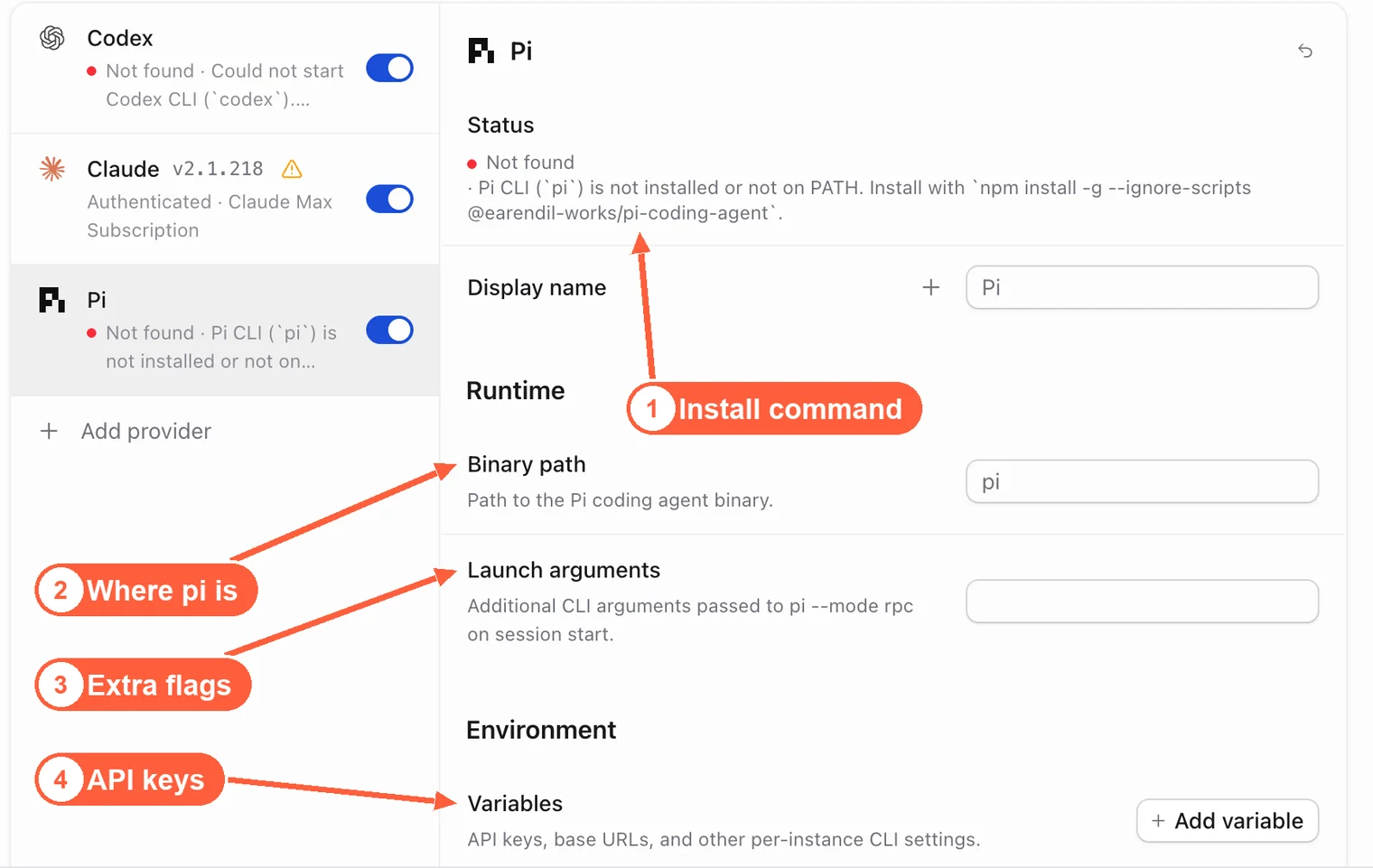
pi isn't on the server's PATH. ③ Launch arguments: extra Pi flags. ④ Variables: API keys for your model provider.After installing, click the refresh icon next to “Checked just now” at the top of the list.
Done when: the Pi card no longer says Not found, and your Pi models appear in the message box's model picker.
What carries over from Pi
- Models, thinking and speed: T3 Code finds your Pi models and thinking levels. If your provider offers service tiers, they show up as a speed picker.
- Your sessions: resume, rollback and forks within the same Pi instance use Pi’s own session files. Switching to a different agent uses T3 Code’s portable handoff, which passes a trimmed copy of the conversation.
- Skills: your Pi user skills and trusted project skills appear when you type
$. - Extensions: an extension’s pickers, confirmations, text inputs and editors appear right in the message box. Its notifications go to the activity log, and status text appears next to the message box.
- Subagents: T3 Code’s
delegate_taskcreates full child threads from Pi. Pi’s examplesubagentextension also shows task progress and results, read-only. See Orchestrator V2.
Permission modes with Pi
| Mode | What Pi does |
|---|---|
| Supervised | Asks before commands, file edits and extension tools. Reading files goes ahead |
| Auto-accept edits | Edits and writes files freely, asks before commands and extension tools |
| Full access | Runs every tool without asking |
| Auto | Not supported. Behaves like Supervised |
- Changing the mode restarts the Pi session and picks the same conversation back up.
- These modes control which Pi tools may run without asking. They are not an operating-system sandbox.
Launch arguments: two rules
Add Pi flags in Settings → Providers → Pi → Launch arguments, with two limits:
--provideronly works together with--model.- Flags that change how Pi runs or which session it opens are rejected, because T3 Code manages those itself.
Keep Pi up to date
Update Pi the way you installed it:
pi updateIf you installed with a package manager, update there instead (for example nix profile upgrade pi). T3 Code shows a ⚠ on the Pi card when your version is too old for the release you’re running.
What about Oh My Pi?
Oh My Pi isn’t a built-in T3 Code provider. A request to add it was closed as not planned in September, and people are still asking for it.
If your Oh My Pi setup can run as an ACP agent, you can try it through T3 Code’s generic route: Settings → Providers → Add provider → Show more → Local ACP command. Enter the program and the arguments Oh My Pi’s own docs give for ACP mode. This isn’t an official integration, so features like logins and model options depend on what Oh My Pi exposes over ACP. See ACP agents.
Troubleshooting
| Problem | Fix |
|---|---|
| Not found | Install Pi on the server machine (step 1), or set Binary path to the output of which pi |
| Pi won’t start | Check node --version on the server. You need 22.19 or newer |
| Project skills, extensions or MCP are missing | The folder isn’t trusted by Pi. Run pi in that folder on the server (with the same PI_CODING_AGENT_DIR if you set one), run /trust, then start a new thread |
| A notice about untrusted project files | To keep project files off without the notice, add --no-approve to Launch arguments |
| Only “Pi default” in the model list | Model discovery failed. T3 Code keeps Pi usable with Pi default, so the session can still handle Pi’s startup prompts |
| No context-window meter | Turn on Settings → Appearance → Thread details → Context window. Some providers only report usage after the first reply |
Sources: the upstream docs in the pingdotgg/t3code repo (providers-pi.md, providers-acp.md), issues #8985 and #4583, and T3 Code 0.1.12.
FAQ
Does T3 Code support the Pi coding agent?
Yes. Pi is a built-in provider. T3 Code runs your existing Pi (0.84.3 or newer, on Node.js 22.19 or newer) and keeps Pi's models, logins, extensions, skills and native session history.
How do I install Pi for T3 Code?
On the machine that runs T3 Code, run npm install -g --ignore-scripts @earendil-works/pi-coding-agent (or use Pi's own installer), then run pi and /login. Turn Pi on in T3 Code's Welcome page or Settings → Providers.
Does T3 Code support Oh My Pi?
Not as a built-in provider. A request for it was closed as not planned. If your Oh My Pi setup can run as an ACP agent, you can try adding it with Settings → Providers → Add provider → Show more → Local ACP command.
Does Auto permission mode work with Pi?
No. Pi supports Supervised, Auto-accept edits and Full access. Auto falls back to Supervised.
Why doesn't Pi load my project's skills or extensions in T3 Code?
The project folder probably isn't trusted by Pi yet. Run pi in that folder on the server, run /trust, then start a new thread.